To join pictures into one image, select 2–20 files, choose Vertical or Horizontal, set a shared edge and click Stitch images. Vertical stitching gives every picture the same width; horizontal stitching gives them the same height. PicZip scales each picture proportionally without cropping, then adds the spacing you choose between neighbors.
Step-by-step instructions
- Open Stitch images together and select 2–20 JPG, PNG or WebP images. Use the up and down arrows in the file list to arrange their reading order.
- Choose Direction. For Vertical, set Shared width (px). For Horizontal, set Shared height (px). Each picture scales to that shared edge while keeping its proportions.
- Set Spacing (px) from 0 to 200. Choose a background color, or enable Transparent background with PNG or WebP output.
- Choose Output format and click Stitch images. Inspect the first and last pictures, the order and the gaps in the result preview.
- Download the combined image. If you change direction, spacing or order, click Stitch images again before downloading the updated result.
Tested example: one landscape and one portrait image
The first source is 400 × 200 pixels; the second is 200 × 400. We used a 200-pixel shared edge and a 16-pixel gap. The same pair produces different canvas dimensions depending on the direction.
| Direction | Scaled pictures | Combined output |
|---|---|---|
| Vertical; width 200 | 200 × 100 + 200 × 400 | 200 × 516 px |
| Horizontal; height 200 | 400 × 200 + 100 × 200 | 516 × 200 px |
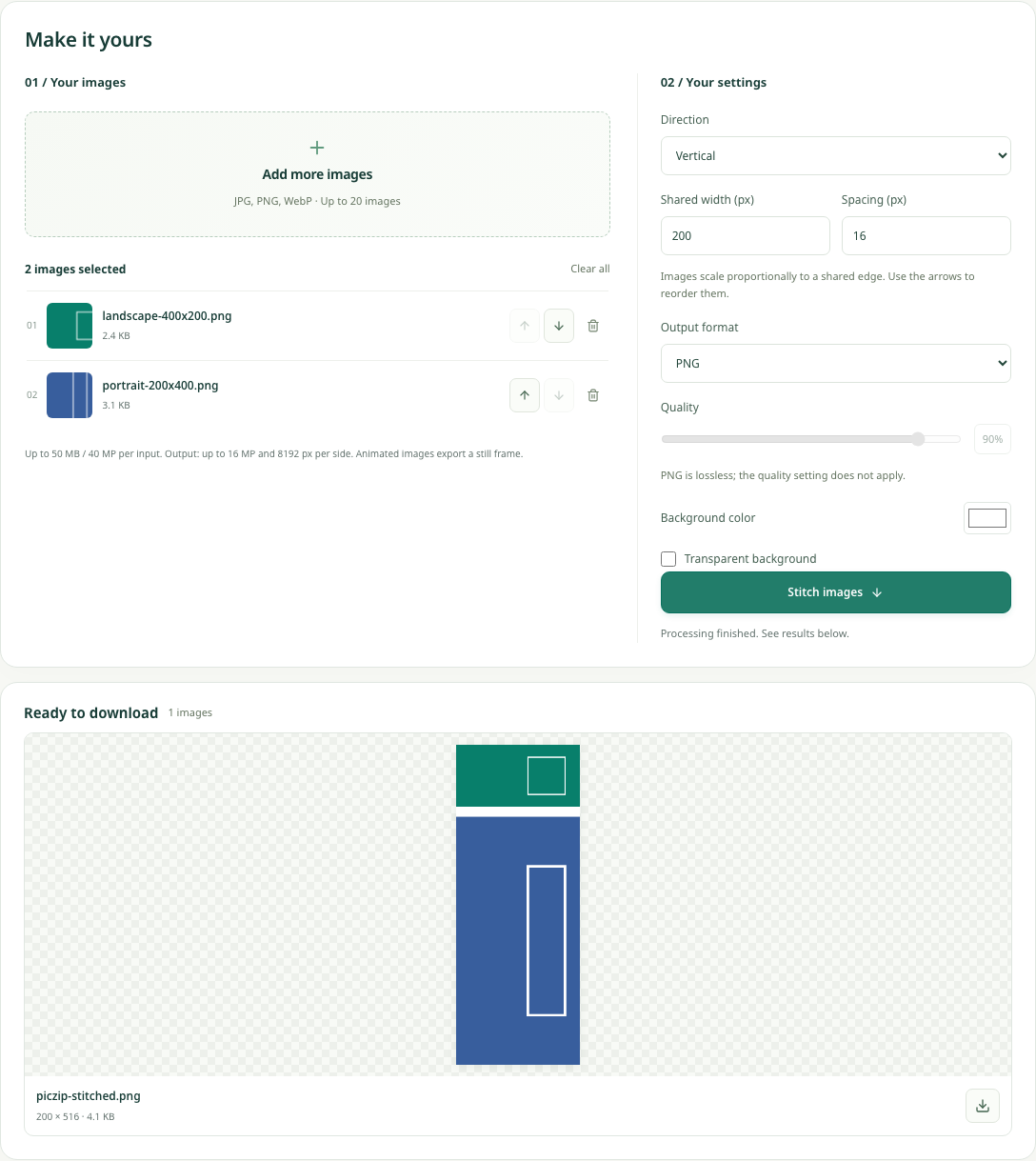
For a vertical result, add the scaled heights and the gaps. For a horizontal result, add the scaled widths and the gaps. Two pictures have one gap; five pictures have four. Spacing is inserted between pictures, with no extra outside border.
Choose a direction based on how the result will be read
Vertical stitching suits a sequence that should be read from top to bottom, such as several instruction panels. Horizontal stitching works for a side-by-side comparison with a clear left-to-right order. Check the destination’s preview area: a very wide strip can be displayed too small on a phone, while a long vertical result may be clipped by a social feed.
This tool puts pictures next to one another. It does not detect overlapping screenshot content, remove repeated headers or align a panorama. Crop away unwanted overlap in an editor first if you need a continuous-looking page. It also does not create a multi-row collage grid.
Choose spacing and background together
Set spacing to 0 for directly touching edges. A modest gap separates independent panels and makes their boundaries easier to see. The background color appears in those gaps and behind transparent parts of the sources. It does not add a margin around the outside of the finished image.
For transparent gaps, choose PNG or WebP and enable Transparent background. JPG cannot store transparency, so it uses the selected color instead. If you need to add a frame, labels or annotations around the combined result, download it and finish those additions in an editor.
Keep a long image within the output limits
The finished image must be no more than 8192 pixels on either side and no more than 16 megapixels in total. A batch of individually acceptable pictures can exceed those limits when combined. Reduce the shared width or height, reduce spacing, or split a long sequence into two outputs.
You can select 2–20 pictures. Each source is limited to 50 MB and 40 megapixels, and all selected files together must fit within 200 MB. Animated inputs become still images. If the final image also needs to meet a KB limit, download it and select it in the compressor; stitching itself has no target-KB setting.
Frequently asked questions
Can I combine pictures with different dimensions?
Yes. Vertical stitching makes their widths equal; horizontal stitching makes their heights equal. Their other dimensions change proportionally, without cropping.
Why is the combined image taller than the originals?
PicZip adds the heights after scaling each picture to the shared width, then adds the gaps. A narrow original may be enlarged. Check the shared width and the calculated example above.
Can I change the order after seeing the preview?
Yes. Use the arrows beside each file, then click Stitch images again. Reordering changes the settings for the next run; it does not silently rewrite a result already generated.