To resize an image without stretching it, choose Pixels, keep Keep aspect ratio checked, and enter one dimension. Leave the other empty so PicZip calculates it. Choose Percentage when every image should shrink by the same proportion. This guide is for preparing product photos, article images and other assets with a required pixel size.
Step-by-step instructions
- Open Resize images and select JPG, PNG or WebP files. Check the destination’s requirements: pixel dimensions and a KB limit are different constraints.
- Set Resize by to Pixels. For a fixed width, enter Width (px) and clear Height (px). Keep Keep aspect ratio checked. Alternatively, choose Percentage and enter Scale (%).
- Choose the output format. Keep original format retains each file’s format; choosing JPG, PNG or WebP gives the batch one output format.
- Click Resize images. Check the dimensions displayed below each result, then open the preview to inspect text, edges and proportions.
- Download individual results or use Download ZIP when several images are ready. After changing a setting, click Resize images again to update the results.
Tested example: a 400 × 200 image
We used the same 400 × 200 PNG for three runs. The table shows decoded output dimensions, not just the numbers typed into the controls. The first example is pictured below.
| Settings | Output | What changes |
|---|---|---|
| 200 × 200 bounds; ratio locked | 200 × 100 px | Fits inside the bounds |
| 200 × 200; ratio unlocked | 200 × 200 px | Stretches the original |
| 50% scale | 200 × 100 px | Halves both dimensions |
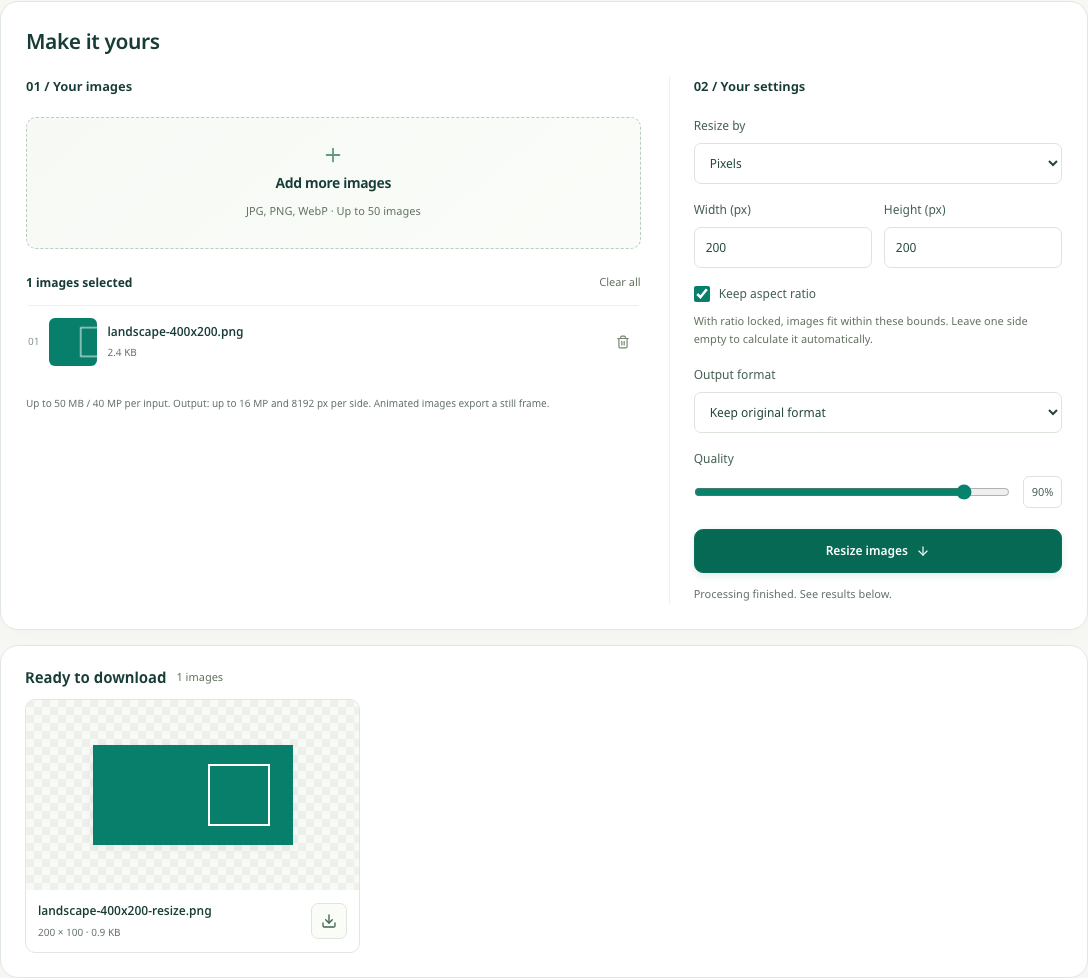
At 50%, width and height each halve. Pixel count falls from 80,000 to 20,000, or one quarter of the original. File size does not necessarily fall to one quarter: image content, format and encoding also affect the number of bytes.
Choose pixels for a target size, percentage for proportional batches
Pixels are useful when a layout has a known width. If an article needs a 1200-pixel-wide image, set width to 1200 and leave height empty. Portrait and landscape images will keep different heights. If you fill in both dimensions while the ratio is locked, they become maximum bounds: the whole image fits inside them without cropping or adding a border.
Percentage applies the same scale to every file. A batch containing 400 × 200 and 200 × 400 images becomes 200 × 100 and 100 × 200 at 50%. That preserves their relative sizes; it does not make all outputs identical. PicZip accepts values from 1% to 400%, rounds dimensions to whole pixels, and keeps each side at least 1 pixel.
Avoid stretching a photo to meet an exact shape
A required square is a different problem from a required width. Turning a 2:1 landscape image into a square while keeping every part of the picture requires either empty space or distortion. With the ratio unlocked, PicZip stretches to the exact width and height you enter. Faces, logos and circles may look wrong.
Keep the ratio locked for ordinary photos. If the destination requires an exact square with an undistorted subject, prepare a crop or a padded canvas in an editor first. This resize tool does not offer cropping or canvas padding. Enlarging a small image also does not recover detail that was missing from the source.
A smaller width is not a guaranteed KB target
Use resizing when dimensions need to change. Use compression when the main requirement is a file-size limit, such as 100 KB. You can combine the two: resize, download the result, then select it in the compressor. The tools do not automatically pass files between pages.
For a mixed batch, inspect one landscape image and one portrait image before downloading everything. Check the actual output dimensions and reopen a result at its normal display size. Keep the source files available so a later change can start from the originals rather than an already reduced copy.
Batch and output limits to check
Resize up to 50 files per batch. Each source must be at most 50 MB and 40 megapixels, with a 200 MB total selection limit. Each output must fit within 8192 pixels on either side and 16 megapixels overall. A valid input can still produce an invalid output when enlarged too far.
If an output-limit error appears, reduce the width, height or percentage and run again. Animated inputs export as a still image. For PNG output, the quality slider is disabled because the PNG encoder does not use that setting.
Frequently asked questions
Why did entering 200 × 200 produce 200 × 100?
With Keep aspect ratio checked, both values define a bounding box. Your 2:1 source fits inside it at 200 × 100. Unlocking the ratio forces a square but stretches the image.
Does 50% mean the file will be half as large?
No. It halves each dimension, leaving roughly one quarter of the pixels. The byte size depends on the image and the selected encoding. Use the compressor for a KB target.
Can I batch resize images to the same width?
Yes. Choose Pixels, enter a width, leave height empty and keep the ratio locked. Every output gets that width with its own proportional height, provided it stays within the output limits.