To convert an image, select it in Convert image formats, choose JPG, PNG or WebP, and click Convert images. Pixel dimensions stay the same. If the source has a transparent background, choose PNG or WebP to keep it; JPG replaces transparent areas with the selected background color. Start with the format accepted by the destination.
Step-by-step instructions
- Open Convert image formats and select your JPG, PNG or WebP files. You can mix these input formats in one batch.
- Set Output format to the format required by your website, form or editor. All selected images will use that output format.
- For JPG or WebP, set Quality. For JPG, also choose Background color if any source contains transparent areas. PNG does not use the quality slider.
- Click Convert images. Check the preview and the file size shown below it. Inspect transparent edges and small text before deciding the result is suitable.
- Download a result or use Download ZIP for several results. If the new format is too large, adjust the settings and run again, or download it and continue in the compressor.
Tested example: one transparent PNG, three outputs
Our 200 × 100 PNG has a transparent left half and a green right half. We converted it at the default quality of 90, using white for the JPG background. All three outputs retained the source dimensions.
| Output | Dimensions | Transparent corner |
|---|---|---|
| JPG | 200 × 100 px | Opaque white |
| PNG | 200 × 100 px | Still transparent |
| WebP | 200 × 100 px | Still transparent |
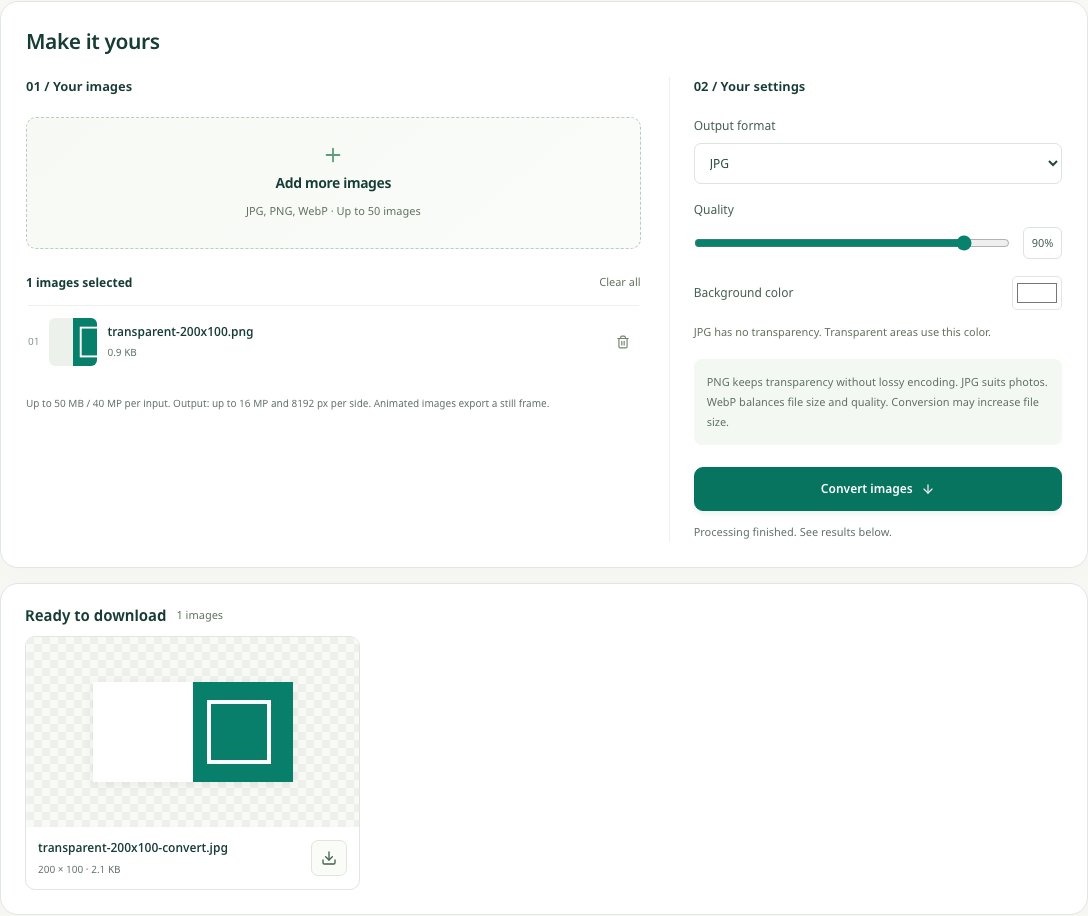
The test decoded each exported file and checked its corner pixel. JPG returned white with full opacity; PNG and WebP returned zero opacity at the same position. These results demonstrate transparency handling, not a general file-size ranking.
Choose a format for the next place the image will go
Use JPG when the destination asks for a JPEG photo and no transparency is needed. Use PNG when retaining transparent edges or crisp graphic content matters more than keeping a photograph small. Try WebP when the receiving website or application accepts it and you want to compare another encoding option.
A form that accepts JPG and PNG may reject WebP even if your browser opens it successfully. Read the upload instructions before converting a large batch. If several destinations have different requirements, keep the originals and export a separate batch for each destination.
Format reference: MDN image file type and format guide (JPEG has no alpha channel; PNG supports lossless encoding and transparency; WebP supports transparency).
Check transparent edges before exporting JPG
Transparent pixels need a visible color in a JPG result. PicZip uses the Background color setting, which starts at white. Choose the color of the surface where the image will appear, then inspect the preview. A logo prepared for a white card can look like a white rectangle when placed on a dark page.
Select PNG or WebP when the same image must work over different background colors. Converting a JPG back to PNG does not remove its background: once transparent areas have been filled, those areas are ordinary image pixels. This tool converts formats; it does not cut out subjects or remove backgrounds.
Why the converted file can be larger
Format conversion changes how pixels are stored. It does not promise a smaller file. A photograph already stored efficiently as JPG can become much larger as PNG. A very simple graphic can behave differently. Compare your own output rather than treating one format as the smallest in every situation.
The quality control ranges from 20 to 100 for JPG and WebP. Start at the default 90, then lower it only if the result still looks acceptable for its intended size. An identical quality number is not a promise of identical appearance or byte size across formats or browsers. PNG output ignores the quality setting.
Saving a blurry JPG as PNG cannot restore lost detail. Work from the best available source and avoid repeatedly converting a previously lossy result. If the destination also has a strict KB limit, download the conversion and select that file in the compressor for a separate size-targeting pass.
Check dimensions, file type and batch limits
The converter keeps pixel dimensions; it does not resize. If a form asks for 600 × 400 pixels as well as a JPG file, use Resize images first, download that result, and then convert if needed. Resize images also offers a format selector, so you can often complete both changes there.
Select up to 50 files, at most 50 MB and 40 megapixels per source, and 200 MB in total. Outputs are limited to 16 megapixels and 8192 pixels per side. Since conversion keeps dimensions, an oversized source may need resizing first. Supported inputs are JPG, PNG and WebP; animated inputs produce a still image rather than an animated export.
Frequently asked questions
Is renaming .png to .jpg enough?
No. Renaming a file does not change its encoded contents. Use the converter to generate a real JPG, then download the new file.
Can PNG conversion make a blurry JPG sharp again?
No. It can save the decoded image in a new format, but it cannot recover detail already lost. Start from a higher-quality original if one is available.
Will a PNG or WebP export remove a white background?
No. It preserves existing transparency; it does not turn white image pixels into transparent pixels. Background removal requires a separate editing step.