You can compress an image to under 100KB without uploading it by processing the file inside your browser. In PicZip, set the target to 100KB, leave Output on Auto, and compress the image. If the result stays above the limit or looks too soft, reduce the maximum width rather than pushing quality lower and lower.
We tested that workflow with a 2,976,317-byte PNG. PicZip produced a 101,730-byte WebP, kept the original 1536×1024 dimensions, and did not send the image to a server.
Our 100KB test result
For this guide, we used a privacy-safe coastal landscape created as a repeatable PicZip test fixture. It contains clouds, water, rooftops, trees, and other fine detail that makes compression artifacts easier to spot than a flat graphic.
| Original | PNG, 1536×1024, 2,976,317 bytes |
|---|---|
| PicZip settings | 100KB target, Auto output, quality 82, max width 2400px |
| Result | WebP, 1536×1024, 101,730 bytes |
| Reduction | 2,874,587 bytes, or 96.58% |
The file met PicZip's 100KB target because the tool uses 1024 bytes per kilobyte. That makes the limit 102,400 bytes; our result was 670 bytes below it. Some forms use “100KB” loosely, while others enforce their own byte calculation. Check the downloaded file before submitting it if the form is unusually strict.
Step 1: Open the 100KB compressor
Open PicZip's 100KB image compressor. The target is already set to 100, so there is no need to calculate a quality percentage in advance.
PicZip runs the decoder and compression engine in the browser. The selected image stays on the device. This matters for application photos, scans, and other files you may not want to send to an unknown processing server.
Step 2: Add the image and check the settings
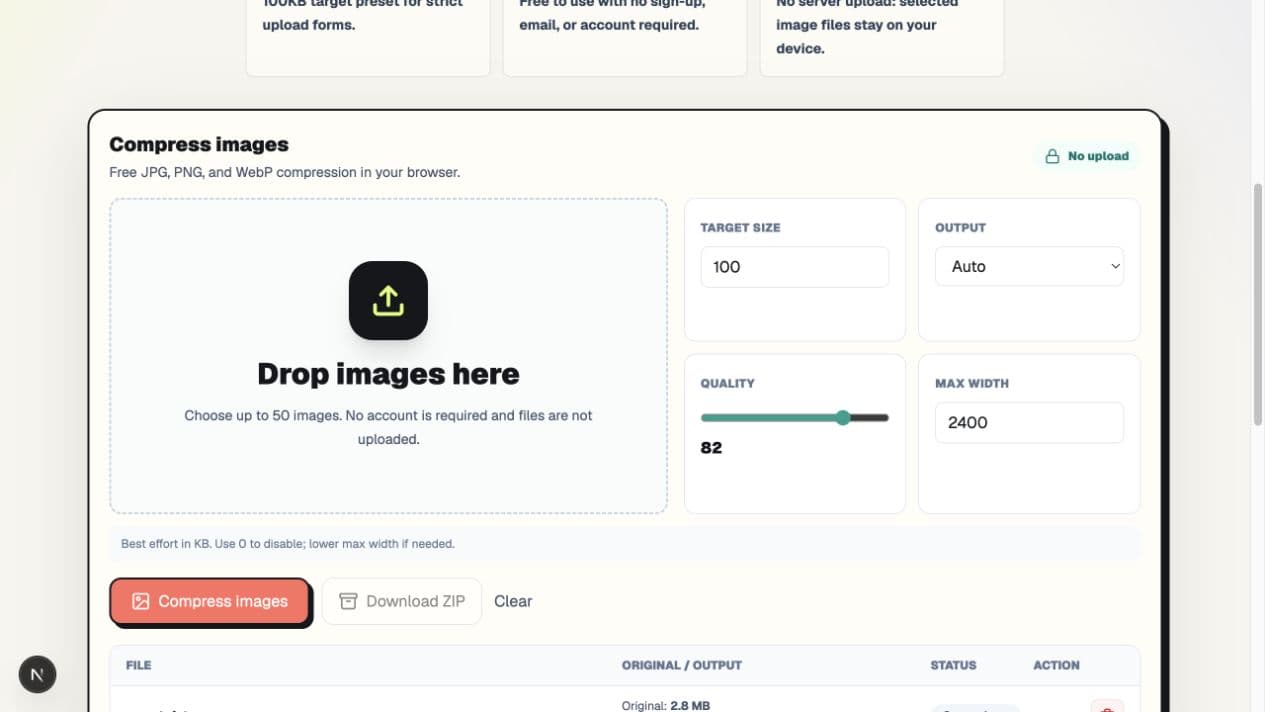
Drop a JPG, PNG, or WebP file into the compressor. Before starting, check these four controls:
- Target size: Keep this at 100.
- Output: Start with Auto so PicZip can retain the smaller result.
- Quality: Start around 82; the target routine can lower it when needed.
- Max width: Leave 2400px for the first attempt unless the destination needs less.
Step 3: Compress and read the result
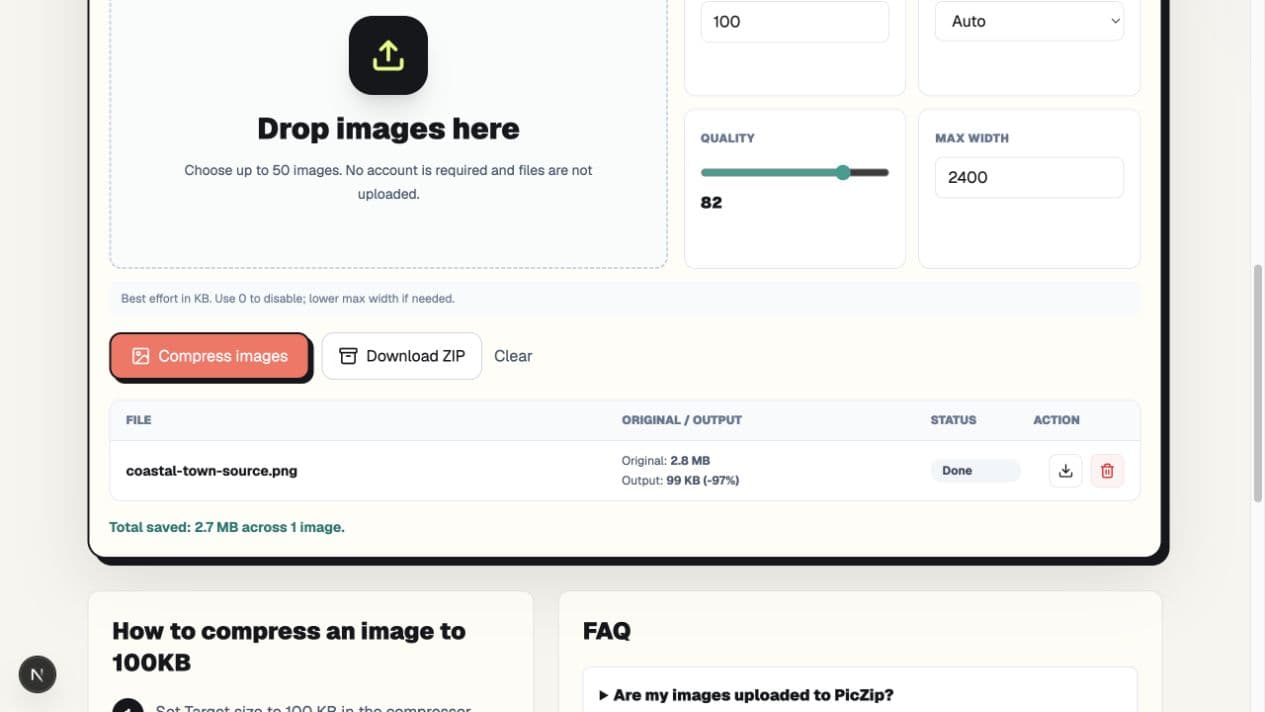
Select Compress images and wait for the row status to change to Done. The result column shows the original size, output size, and reduction percentage.
In our test, Auto selected WebP and returned a 99KB result. The more precise size recorded by the page was 101,730 bytes. The dimensions stayed at 1536×1024 because the original image was already narrower than the 2400px maximum.
The biggest reduction did not come from shrinking dimensions. The original was a detailed PNG, while the result was a lossy WebP. Changing the encoding format accounted for much of the size difference.
What to change if the image will not reach 100KB
Not every image can look good at 100KB. A detailed 6000px photograph has far more visual information than a simple 1200px profile picture. If the first result misses the target or looks poor, change one variable at a time.
Reduce maximum width first
If the form displays the image at a small size, lower Max width to 1600px or 1200px and run compression again. Removing pixels the destination will never display often produces a cleaner image than retaining huge dimensions at very low quality.
Do not resize blindly. A document scan with small text may need more pixels than a profile photo. Open the downloaded result at 100% and confirm that faces, text, and edges remain usable.
Choose JPG or WebP for photographs
PNG is useful for transparency, interface screenshots, and graphics with hard edges. It is often inefficient for photographs. For a photo that must fit under 100KB, Auto, JPG, or WebP will usually be more practical.
If the destination only accepts JPG, choose JPG explicitly instead of Auto. A smaller WebP is not useful when the upload form rejects that format.
Treat 100KB as a limit, not a quality setting
The target size and quality slider do different jobs. Quality controls the starting encoding quality. Target size tells PicZip to search for a smaller result when that first encoding is still too large.
A 100KB target does not guarantee the same visual quality for every image. Fine hair, leaves, text, and noise are harder to compress than a plain background. The right result is the smallest file that still works for its destination, not simply the file with the highest reduction percentage.
Does “no upload” really mean the file stays local?
For PicZip's compressor, yes. Image decoding, resizing, format conversion, and compression run in the browser. There is no image-upload endpoint in this workflow. Read more about the design on the compress images without uploading page.
The website itself still loads normal web assets such as HTML, JavaScript, and fonts. “No upload” refers specifically to the image files selected for compression.
Frequently asked questions
Can I make an image exactly 100KB?
PicZip treats 100KB as a maximum best-effort target, not a promise to produce exactly 100,000 bytes. In our test it returned 101,730 bytes, which is below its 102,400-byte target. Exact output depends on image content and the available encoder settings.
Why did PicZip change my PNG to WebP?
With Output set to Auto, PicZip compares the original format with WebP and keeps the smaller encoded result. In our test, WebP was substantially smaller. Select PNG or JPG explicitly when a form requires a particular format.
Will reducing maximum width crop the image?
No. Max width scales the whole image proportionally; it does not crop the edges. For example, lowering a 3000×2000 image to 1500px wide produces a 1500×1000 result.
Is 100KB enough for a profile photo?
Often, but the answer depends on the required pixel dimensions and amount of detail. A small portrait against a plain background is easier to compress than a high-resolution group photo. Always check the destination's format and dimension rules.
The practical answer
Start with the 100KB preset, Auto output, quality 82, and the default maximum width. Download and inspect the result. Only lower the maximum width when the first attempt misses the limit or retains more pixels than the form needs.
Our test reached 101,730 bytes without resizing, but that is one image, not a universal promise. Use the result panel as evidence, inspect the downloaded file, and adjust one setting at a time. When you are ready, open the PicZip 100KB compressor and test your own image locally.