You can reduce image file size without changing dimensions by changing how the same pixels are encoded. In PicZip, set Max width to 0, keep the original as the input, and try JPG or WebP for a photograph. Then verify that the output width and height match the source before replacing or submitting anything.
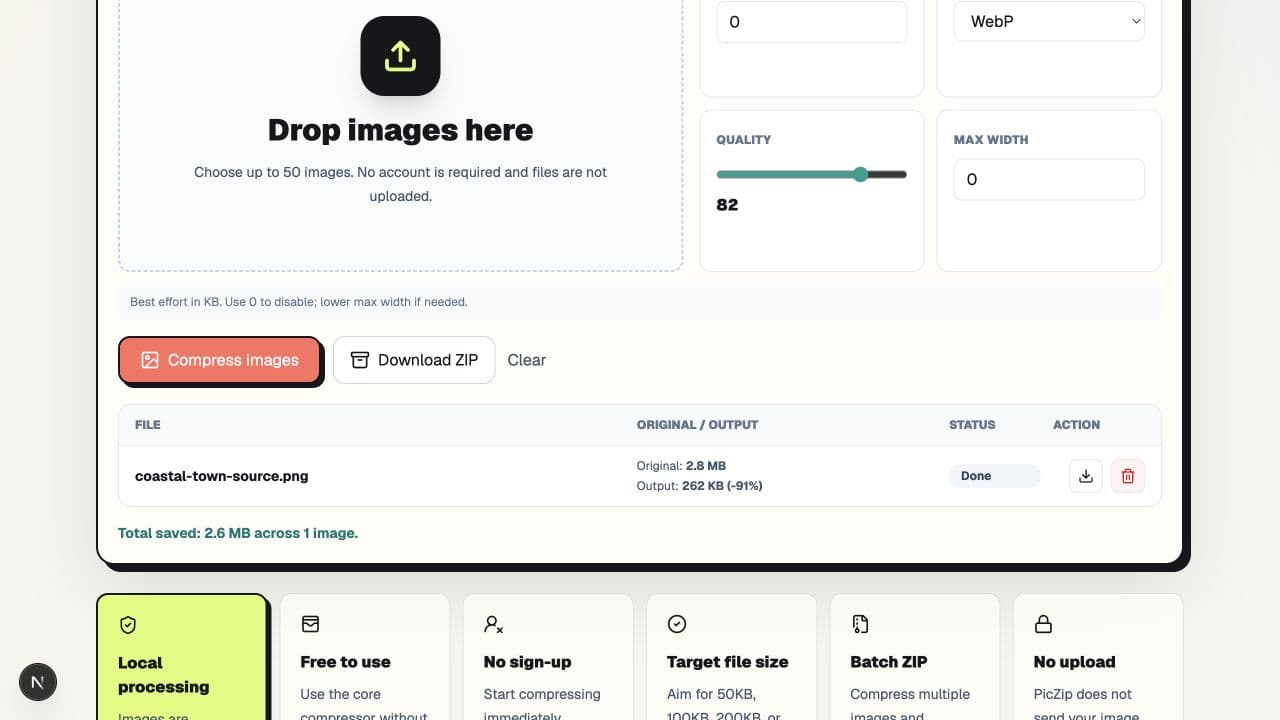
In our test, a 2,976,317-byte PNG at 1536×1024 became a 287,599-byte JPG and a 268,434-byte WebP. Both outputs remained exactly 1536×1024. The reduction came from format and lossy encoding, not from removing pixels.
The same-dimension test results
We used PicZip's coastal image fixture and disabled both Target size and Max width by entering 0. Quality started at 82. Each run began from the same original file, so repeated lossy encoding did not influence the comparison.
| File | Dimensions | Exact size | Change |
|---|---|---|---|
| Original PNG | 1536×1024 | 2,976,317 bytes | Source |
| JPG output | 1536×1024 | 287,599 bytes | 90.34% smaller |
| WebP output | 1536×1024 | 268,434 bytes | 90.98% smaller |
Keeping dimensions does not mean keeping every pixel value unchanged. JPG and the WebP mode used here are lossy encodings: they preserve the pixel grid but simplify image information to save bytes. This distinction matters for forms that require a minimum resolution and for artwork that must remain pixel-exact.
Step 1: Disable resizing
Open the local image compressor, add the original, and enter 0 in Max width. A value of 0 disables the width limit. Leave Target size at 0 for the first run so you can observe the result from the selected quality and format without an additional byte target.
Do not enter the current width as a substitute for disabling resizing. Both approaches can retain dimensions, but 0 communicates the actual intent and avoids an accidental reduction when a different source file is added to the batch.
Step 2: Choose an efficient format
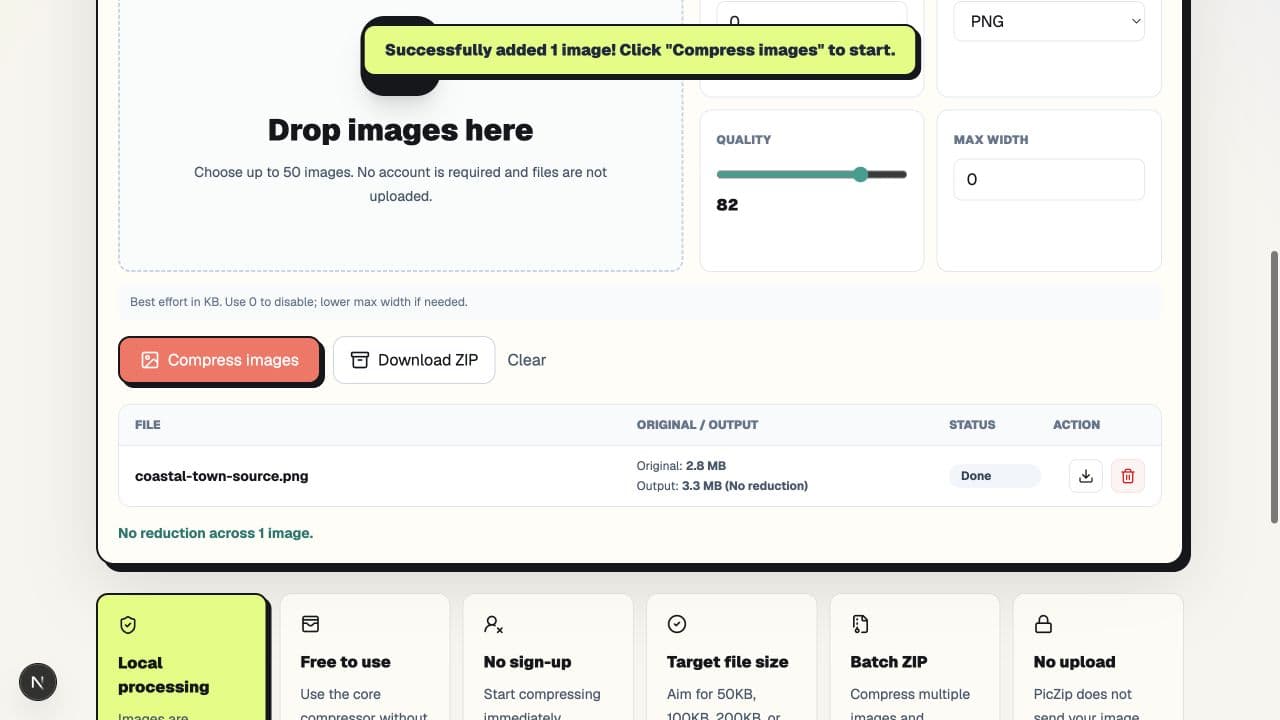
For photographs, try JPG when compatibility is important and WebP when modern web delivery is acceptable. PNG is lossless and useful for transparency or sharp graphics, but a detailed photograph can become larger when re-encoded as PNG.
The smaller format is not automatically the correct format. A portal that accepts JPG but rejects WebP needs JPG even when WebP saves another 19,165 bytes. A transparent logo needs a format that preserves its alpha channel.
Step 3: Verify dimensions and quality
Check the downloaded file's properties and confirm both width and height. Then inspect the image at 100% zoom. Look at faces, text, fine hair, foliage, gradients, and high-contrast edges. Matching dimensions prove only that the pixel grid stayed the same; they do not prove that lossy artifacts are invisible.
If the first output looks too soft, increase quality and accept a larger file. If the file is still too large and the destination allows fewer pixels, resizing becomes a separate option, not something to hide inside the same-dimension workflow.
When this method is useful
- An upload form requires a minimum width and height.
- A website layout already uses the correct source dimensions.
- You need a smaller delivery copy but want to retain the original crop.
- You want to test encoding savings before deciding whether resizing is necessary.
It is not appropriate when the destination requires lossless pixel values, when a format conversion removes transparency, or when the source is already a heavily compressed JPG.
Frequently asked questions
Does compression change image dimensions?
Not when Max width is 0 and no other resize limit applies. In our test, both JPG and WebP remained 1536×1024.
Does keeping dimensions mean no quality loss?
No. Dimensions describe the pixel grid. Lossy JPG and WebP encoding can change pixel values while retaining the same width and height.
Why did PNG not get smaller?
PNG is lossless and can be inefficient for detailed photograph-like content. Re-encoding can even grow the file. Keep the original when the new PNG is larger.
Can I also set a target size?
Yes, but use it after the first controlled run. A strict target may require lower quality, and some images cannot meet it acceptably without resizing or changing format.
The practical answer
Disable Max width, encode from the original, and verify the final dimensions. Our WebP test removed about 90.98% of the bytes without changing 1536×1024, but that result depends on the source. Keep the original and judge the actual output rather than assuming equal dimensions guarantee equal visual information.